
Visualizing AgileBot Robot Models in Isaac Sim
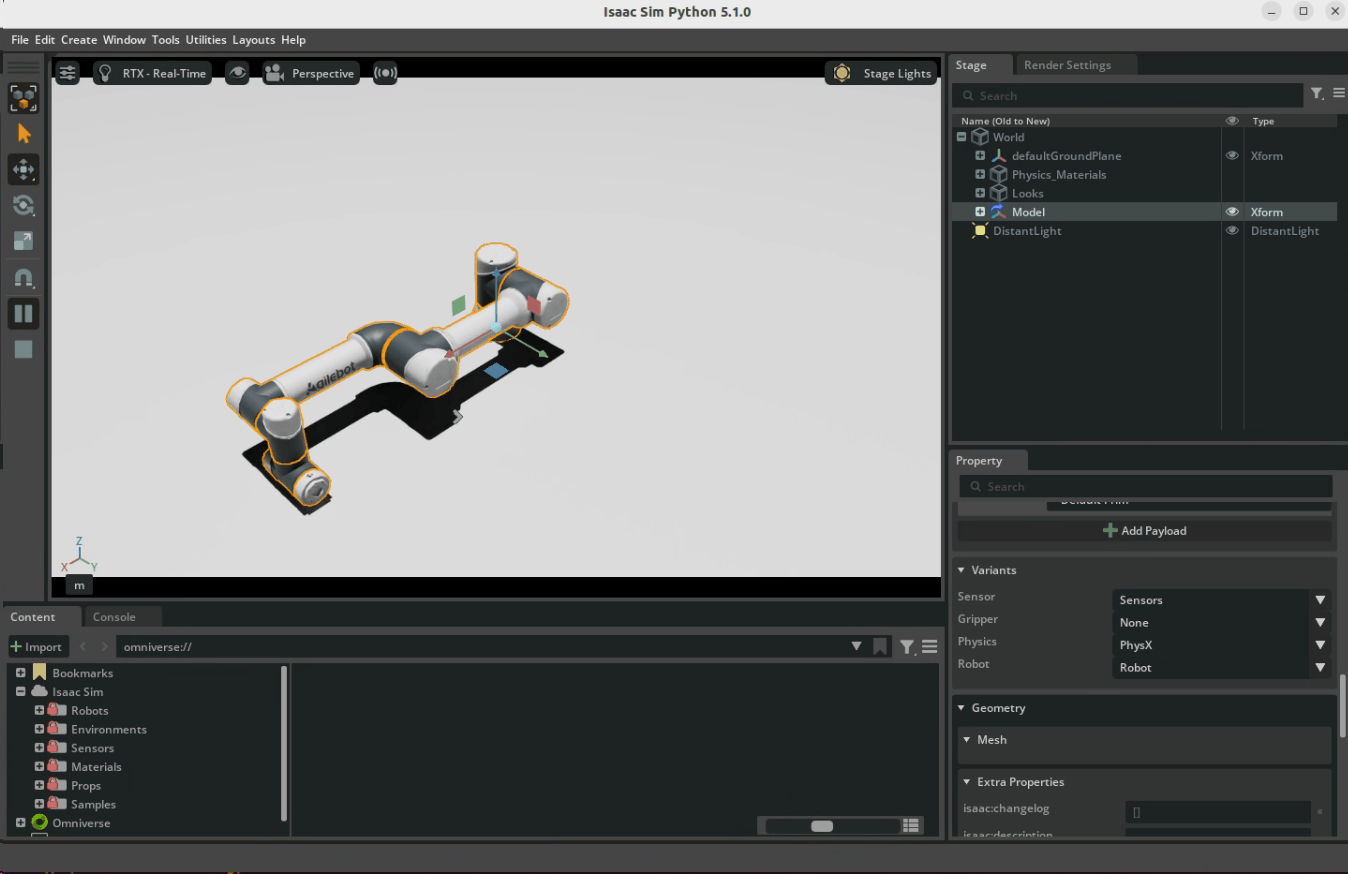
This tutorial will guide you through loading and displaying AgileBot robot models in NVIDIA Isaac Sim.
Prerequisites
Make sure you have completed the Isaac Sim Environment Configuration.
Loading Robot Models
Method 1: Loading Using Python Script
python
#!/usr/bin/env python3
"""
Simplest USD Display Example - Using Isaac Sim Default Ground Plane
Load and display the specified USD file directly
"""

import sys
import os

# Specify USD file path directly (please modify to your file path)
USD_PATH = "/home/gbt/ws/usd/gbt-c5a/gbt-c5a.usd"  # Modify to your USD file path

# Check if file exists
if not os.path.exists(USD_PATH):
    print(f"Error: File not found: {USD_PATH}")
    print("Please modify the USD_PATH variable in the script to the correct file path")
    sys.exit(1)

try:
    # Start Isaac Sim
    from isaacsim import SimulationApp

    # Create simulation application (display window)
    simulation_app = SimulationApp({"headless": False})

    import isaacsim.core.experimental.utils.stage as stage_utils
    import omni.timeline
    from isaacsim.core.api.objects.ground_plane import GroundPlane

    # Create new stage
    stage_utils.create_new_stage()

    # Add ground plane (Isaac Sim official API)
    print("Adding default ground plane...")
    GroundPlane(prim_path="/World/defaultGroundPlane", z_position=0)

    # Add lighting
    print("Adding environment lighting...")
    from pxr import Sdf, UsdLux
    import omni.usd

    stage = omni.usd.get_context().get_stage()
    distantLight = UsdLux.DistantLight.Define(stage, Sdf.Path("/DistantLight"))
    distantLight.CreateIntensityAttr(1500)

    # Add USD file to stage
    print(f"Loading: {USD_PATH}")
    usd_prim = stage_utils.add_reference_to_stage(
        usd_path=USD_PATH, path="/World/gbt_c5a"
    )
    usd_prim.GetVariantSet("Gripper").SetVariantSelection("None") # without gripper

    if usd_prim is None:
        print("Warning: Unable to load USD file")
    else:
        print("USD file loaded successfully!")

    # Play simulation
    timeline = omni.timeline.get_timeline_interface()
    timeline.play()

    print("Model displayed, press Ctrl+C to exit...")
    # Keep running
    while simulation_app.is_running():
        simulation_app.update()

except ImportError as e:
    print(f"Import error: {e}")
    print("Please ensure Isaac Sim is correctly installed and configured")
    sys.exit(1)
except KeyboardInterrupt:
    print("\nExiting...")
except Exception as e:
    print(f"Runtime error: {e}")
    sys.exit(1)
Method 2: Loading Using Isaac Sim GUI
- Start Isaac Sim GUI
- Navigate to the folder downloaded in the previous chapter using menu
File->open - Open the corresponding USD file
Supported Robot Models
AgileBot Isaac Sim supports the following robot models:
| Model | Description | USD File Name |
|---|---|---|
| gbt-c5a | 5kg payload collaborative robot | gbt_c5a.usd |
| gbt-c7a | 7kg payload collaborative robot | gbt_c7a.usd |
| gbt-c12a | 12kg payload collaborative robot | gbt_c12a.usd |
| gbt-c16a | 16kg payload collaborative robot | gbt_c16a.usd |
FAQ
Q: Robot USD file fails to load
A: Please check if the USD file path is correct
Q: Robot appears gray or missing textures
A: Ensure the USD file contains correct materials and texture references. Check if the asset directory structure is complete.
Next Steps
After successfully loading the robot model, you can try the following examples: